This guide walks through how to configure a KUDO Meeting to broadcast multilingual audio channels to YouTube using RTMP broadcasting. By the end of this process, each configured KUDO language channel will stream independently to its own YouTube Live destination.
Audience: Hosts, Operators, AV Technicians, and meeting organizers.
Before You Start
Before configuring YouTube streaming, confirm that the KUDO meeting has already been created and translation languages are configured. You'll also need a separate YouTube Live stream created for each language, with its own unique stream key, and a Host with permission to manage broadcast settings in both KUDO and YouTube Studio.
Important: Each language must be broadcast independently to its own YouTube Live destination. Reusing the same stream key across multiple languages will interrupt or overwrite active broadcasts.
Configuring YouTube Streaming
In YouTube Studio, create one YouTube Live stream for each language you plan to broadcast. Each stream must have its own unique stream key.
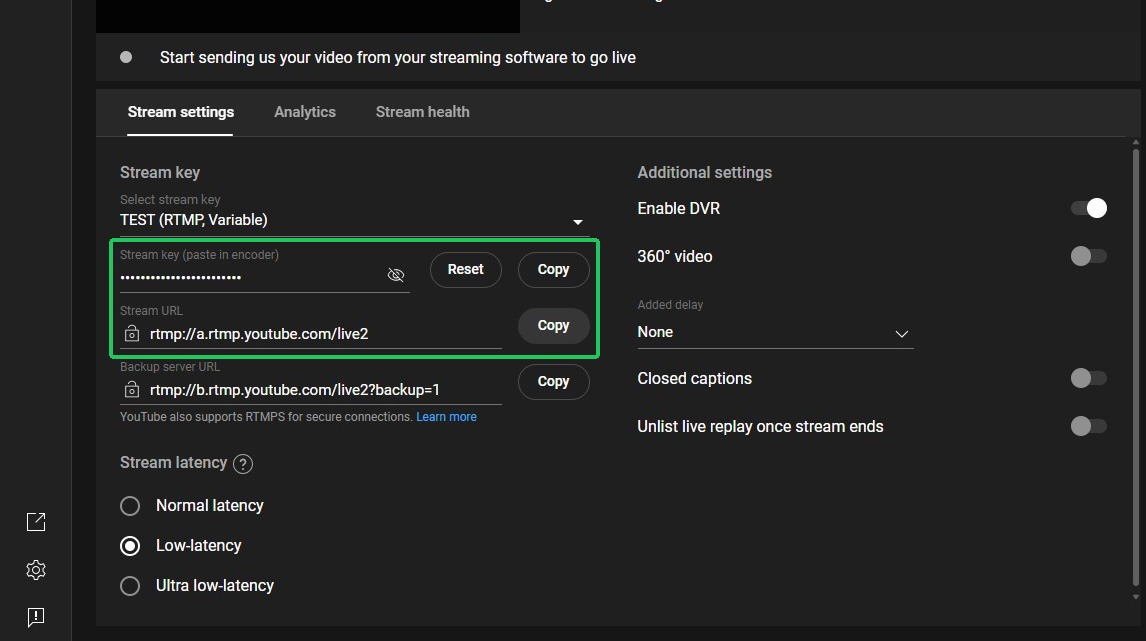
- From the KUDO meeting dashboard, go to Settings > Broadcast.
- Enable RTMP Stream, then click + Add RTMP Stream.
- Enter the YouTube stream URL in the Server URL field and the corresponding stream key in the Stream Key field. Then select the KUDO language channel you want to broadcast to that destination.
- Click Start Broadcast to begin streaming the selected language channel to YouTube.
- Repeat steps 3 through 5 for each additional language.
Troubleshooting
| Task | Action | Expected Result |
|---|---|---|
| Verify YouTube Stream Configuration | If the YouTube stream does not start successfully, confirm that the Stream URL and Stream Key are correct, the YouTube stream is active, the selected KUDO language channel is available, and the broadcast was started inside KUDO. | The RTMP broadcast connects successfully and the translated language stream becomes available on YouTube. |
| Verify Internet Stability | Confirm that the broadcasting computer has stable upload bandwidth and network connectivity. | The RTMP broadcast remains stable without buffering, interruptions, delayed audio, or disconnects. |
| Restart the Broadcast | If the YouTube stream becomes unstable, stop the RTMP broadcast from KUDO, verify the Stream URL and Stream Key, then restart the broadcast from KUDO. | The RTMP broadcast reconnects and the YouTube stream resumes normally. The live stream may temporarily pause during reconnection. |