This guide walks hosts through the steps required to join a Teams meeting, enable AI translation, select languages, and manage the KUDO Bot.
Audience: Hosts and meeting organizers using KUDO AI Translation in Teams.
Before You Start
KUDO AI for Teams is an audio-first experience, so a little preparation goes a long way. Whether you're presenting or attending, use a headset and check your computer audio settings beforehand. It's also worth lowering your headset volume before joining as translated speech can start playing at unexpected levels when the meeting begins.
Before getting started, confirm that the Teams meeting has already been created, the KUDO app is accessible through the Teams app store, and the Host has permission to manage the KUDO app and Teams meeting lobby.
Joining Teams Meeting
Before clicking join, select your preferred headset or audio device and confirm it's also set as your primary system sound output. Translated speech plays through your selected output device automatically once you choose a voice translation channel.
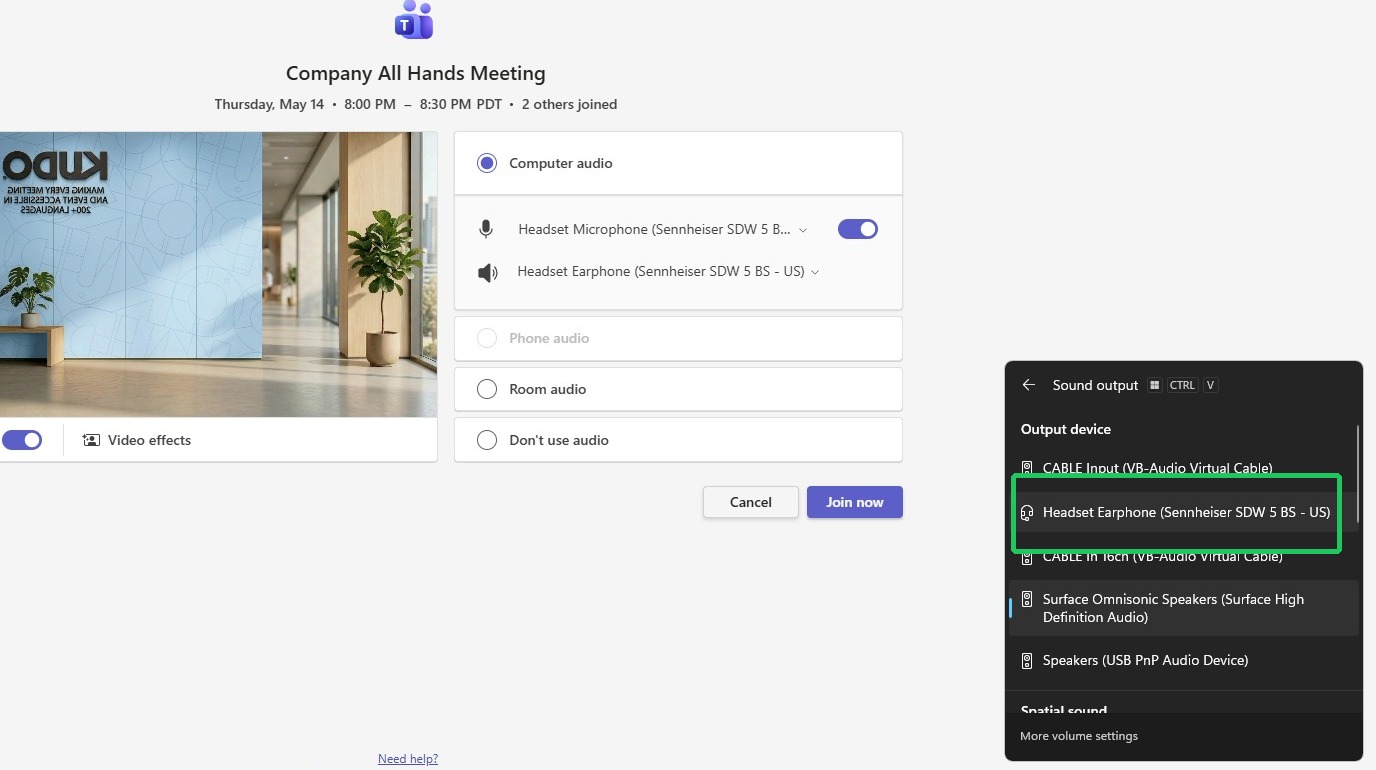
- Click Join now once your audio device is configured.
- When prompted, click Admit to allow the KUDO Bot into the meeting. The Bot automatically attempts to join through the Teams lobby 10 minutes before the scheduled start time. If it doesn't join automatically or disconnects due to inactivity, the Host can manually reset it from the KUDO app meeting dashboard inside Teams.
- Click the KUDO app in the Teams meeting toolbar to access AI translation. If the meeting is configured correctly but the Bot still can't join, or the app displays an "Invalid Meeting" error, the most reliable fix is to schedule a new Teams meeting with the KUDO app configured from the start.
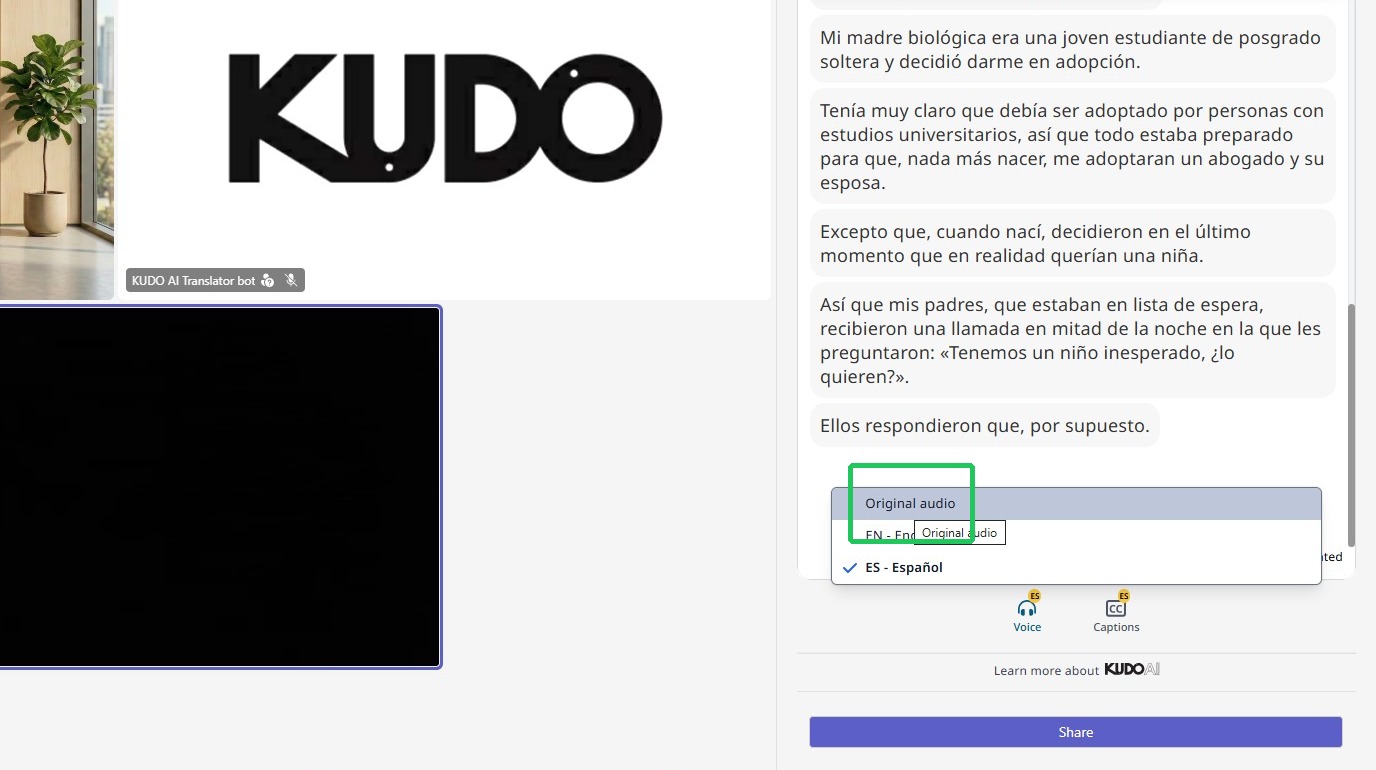
- Select a captions language to view translated captions during the meeting.
- Choose a language from the available Voice translation channels to hear translated speech.
- Select Original audio to listen to participants directly while continuing to follow translated captions.
Troubleshooting
| Issue / Task | Recommended Action | Expected Result |
|---|---|---|
| KUDO app becomes unresponsive or captions stop updating | Click Reload Tab inside the KUDO app panel. | The KUDO app refreshes and multilingual speech and captions reconnect. |
| AI translation is not audible or plays through the wrong device | Confirm that the same audio output device is selected in both Microsoft Teams and the operating system sound settings. | Translated speech plays through the correct audio device selected by the participant. |
| Translation stops or the KUDO Bot disconnects | The Teams Host, KUDO Client, or Operator can click + Add Bot inside Teams, or select Restart Translation Service inside KUDO to reinitialize AI translation services. | The KUDO Bot attempts to rejoin the Teams meeting and multilingual speech and captions reconnect. Translation services may temporarily pause for several seconds while reconnecting. |
| Participants cannot access the KUDO app | Ask participants to rejoin the Teams meeting using the Teams desktop or mobile application. If the KUDO app remains unavailable due to device or organizational limitations, provide the meeting Mobile Link. | Participants can continue accessing translation through the Mobile Link even if the embedded Teams app is unavailable. |
| KUDO Bot repeatedly waits in the Teams lobby | Modify the Microsoft Teams meeting lobby settings to allow the KUDO Bot to bypass the lobby automatically. | The KUDO Bot can join the Teams meeting automatically without requiring manual admission from the Host. |