This guide walks Hosts, Operators, and Presenters through the steps required to join a KUDO AI Meeting, configure audio devices, and use AI translation features during the meeting.
Audience: Hosts, Operators, and Presenters.
Before You Start
KUDO AI Meetings are built for multilingual audio experiences, so a little preparation before joining makes a significant difference. Whether you're presenting or attending, use a reliable headset and verify your audio and network settings ahead of time.
Before the meeting begins, confirm that a Host has been assigned (required if you plan to record), speaker and translation languages have been identified, participants have received the correct meeting links, and any AI Customization terminology has been prepared if your meeting requires it.
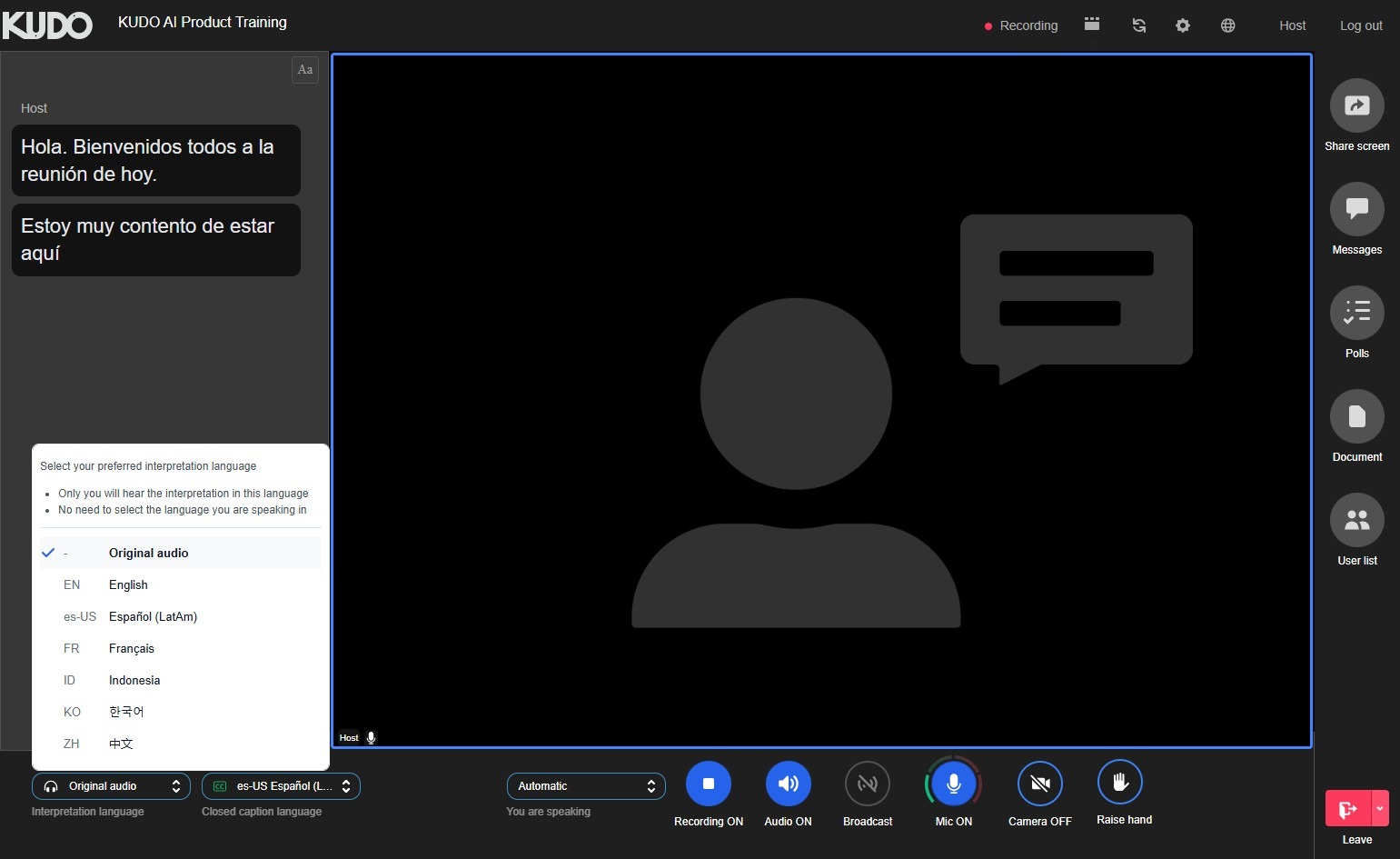
Joining on Desktop
- Open the Participant/Speaker link, enter your name and email address, and click Join.
- To start or stop a recording, click Recording. If the button is unavailable, you may not have joined with Host permissions.
- Click Closed Caption Language and select your preferred translation language for captions.
- Turn on your microphone and begin speaking to verify AI translation is working. Captions and translated text should appear in real time. If the translation looks off, confirm that the correct Speaking Language, or Automatic, is selected and matches the language being spoken.
- Click Interpretation Language to select an AI speech translation channel or switch back to the original meeting audio.
- Click Messages to chat with other participants and Operators during the session.
- If you joined as a Host, you have access to additional controls: ending the meeting, managing recordings, controlling participant microphones and cameras, updating display names, managing requests to speak in moderated sessions, enabling polls, and uploading documents.
Joining on Mobile
- Download KUDO Live for iOS or Android.
- Tap Join with Meeting ID.
- Enter the KUDO Participant/Speaker link or Meeting ID.
- Allow KUDO Live to access the device camera and microphone.
- Select your speaking language and preferred AI voice.
- Tap Join to enter the meeting.
Troubleshooting
| Task | Action | Expected Result |
|---|---|---|
| AI is not recognizing terminology | Upload a Glossary or use the Do Not Translate list to optimize AI terminology recognition for the meeting. | AI translation improves for product names, technical terminology, and organization names. |
| No Audio or Incorrect Audio Output | Verify the same headset or speaker device is selected both in your operating system audio settings and inside KUDO Media Settings. | Meeting audio outputs from the selected device correctly. |
| Microphone or Camera Not Detected | Close other applications using the device, restart Chrome, then rejoin the meeting. | KUDO reconnects to the available microphone and camera devices. |
| Inaccurate or Incorrect Translation | Verify that the correct Speaking Language or Automatic is selected and matches the language being spoken. Speak clearly into the microphone and avoid overlapping speakers whenever possible. | AI captions and translated speech align more accurately with the spoken language. |
| Minor Browser or UI Issues | Click Refresh within KUDO or refresh the browser page. | Minor interface or connection issues are resolved. |
AI translation quality depends heavily on microphone quality, stable internet connectivity, and clear speech from participants.