This guide walks through how to join a KUDO AI Meeting using the KUDO Live mobile application. Participants can access AI speech translation and captions directly from a mobile device.
Audience: Hosts, Participants, field teams, Operators, and users launching meetings from the KUDO Live mobile application.
Before You Start
Before starting a Meet Now session, confirm that the KUDO Live mobile app is installed, the Participant/Speaker link is on hand, and the device has a stable internet or Wi-Fi connection. Make sure microphone and camera permissions are enabled, and have earphones or a headset available as they make a noticeable difference in translated audio clarity and help reduce echo. You should also know your speaker and translation languages before the session begins.
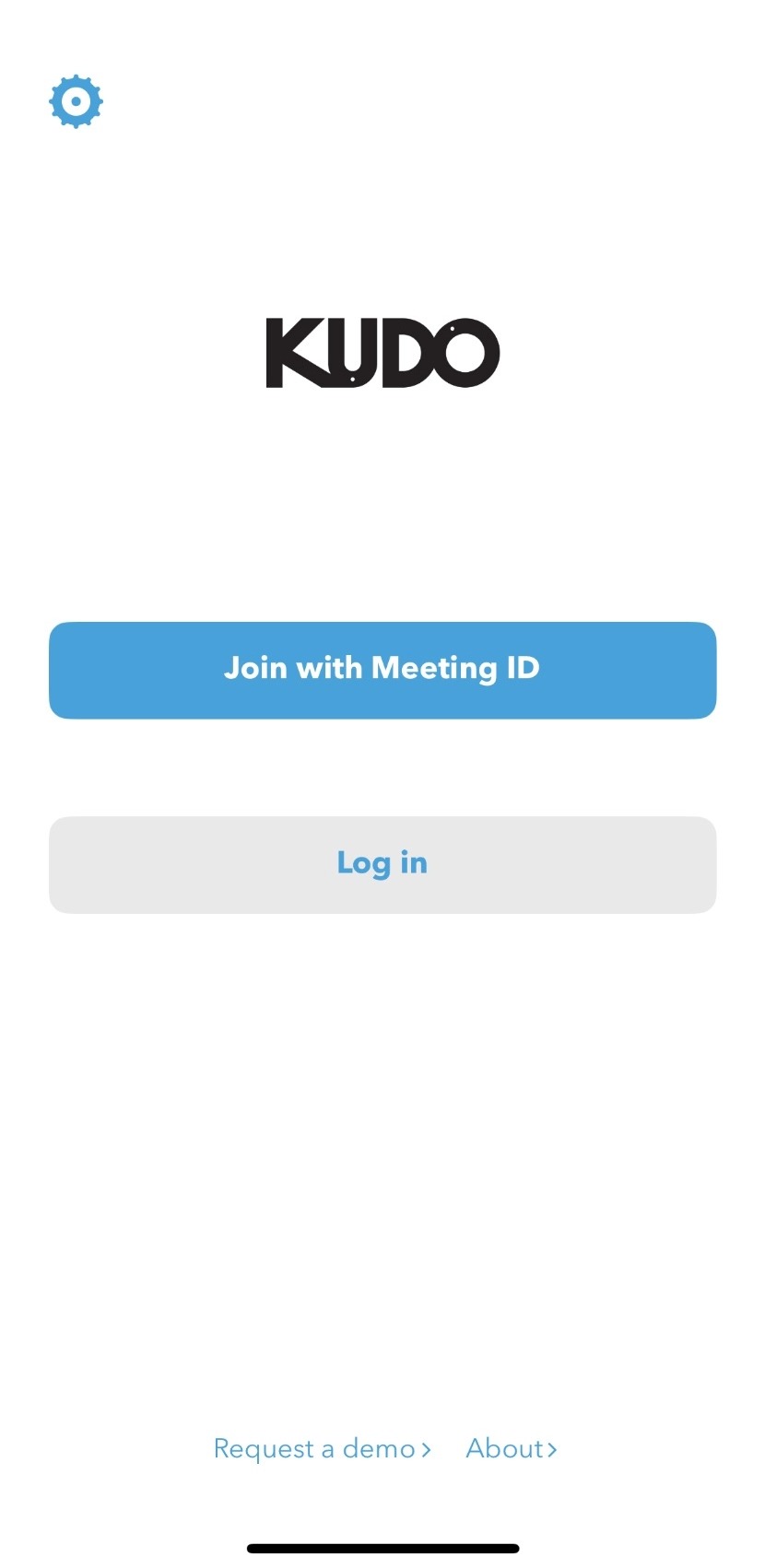
Joining a Meeting
Troubleshooting
| Issue | Possible Cause | Recommended Action |
|---|---|---|
| Participants cannot hear translated audio | Device audio output too low or disconnected | Verify headset connection and device volume settings |
| AI captions are not updating | Microphone permissions blocked | Verify microphone permissions are enabled for KUDO Live |
| Echo or audio feedback occurs | Device speakers are active near microphones | Use earphones or a headset during the meeting |
| Camera does not activate | Camera permissions blocked | Allow camera permissions in device settings |
| Participants cannot join the meeting | QR code or meeting link not shared correctly | Re-share the QR code or meeting link from the Host device |
| Translation quality is inconsistent | Poor network or microphone quality | Improve internet stability and reduce background noise |